
How to Make a Photo Speak with Custom AI Audio
Learn how to make a photo speak custom messages using AI audio on WhatsApp. Discover best script practices, natural lip-syncing tips, and emotional tributes.
- talking photo
- photo with voice
- AI video generator
- WhatsApp AI
- digital memories
How Custom AI Speech Works for Animated Photos
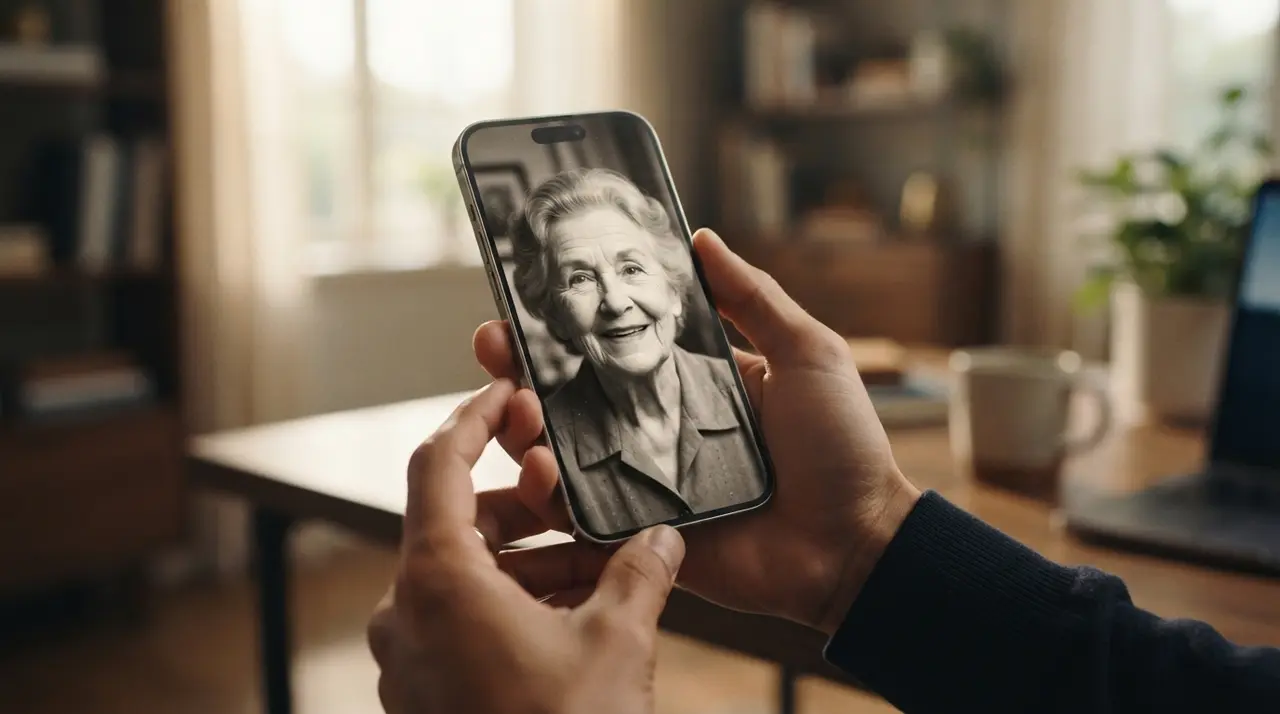
Making a photo speak custom audio with AI allows users to transform a still image into a video where facial movements naturally sync with a written script. Through WhatsApp services like Vídeo com IA, you simply send a portrait photo along with the exact text message you want the person in the photo to say, generating a high-quality video with voice output in minutes. You can explore more about initial setup in our guide on how to animate a portrait into a talking video.
AI Generates Lip-Synced Speech from Text Prompts
Artificial intelligence analyzes facial landmarks in portrait photos to match realistic lip movements with synthesized voice audio generated from written scripts. The system identifies key points around the eyes, jawline, and mouth to create smooth, natural expressions whenever the virtual voice pronounces specific vowels and consonants.
When you submit a text script, the AI engine processes the phonetic breakdown of each word. By default, the system recognizes clear phrasing and automatically applies natural voice inflections. This eliminates the need for manual video keyframing or complex audio editing tools.
Short and Clear Scripts Produce the Most Natural AI Videos
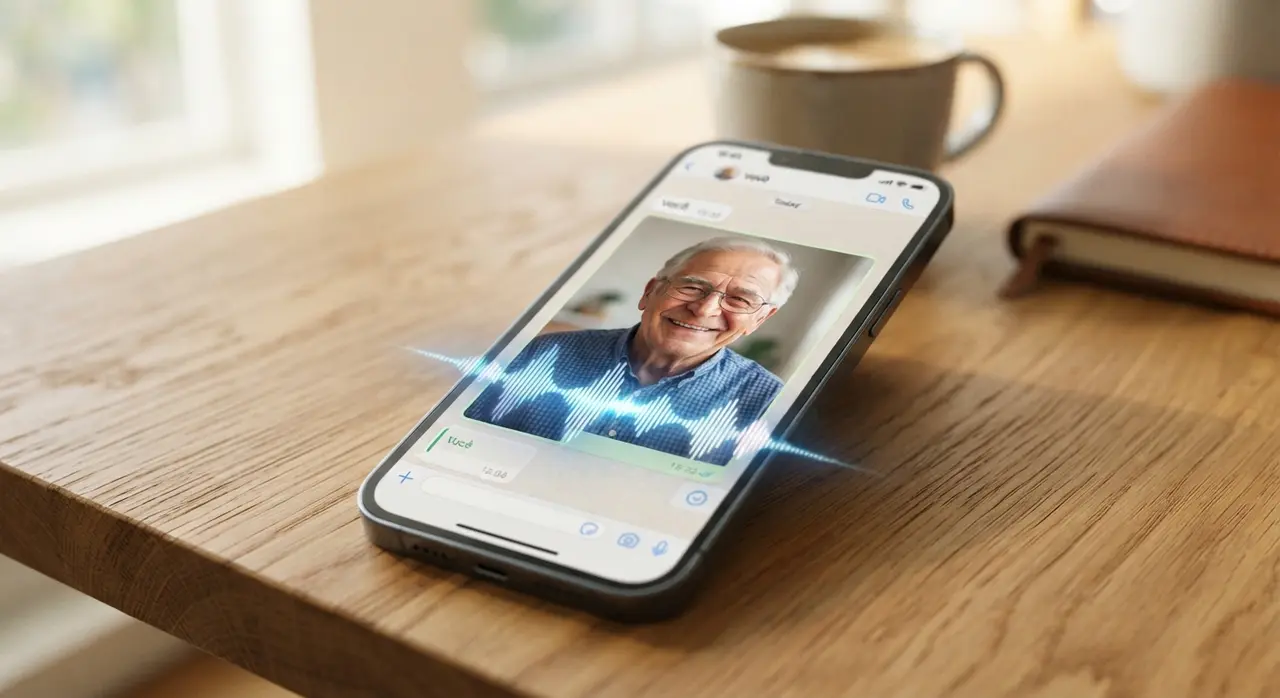
Writing concise, naturally punctuated messages ensures the AI generates smooth voice phrasing and believable facial expressions. Long, uninterrupted blocks of text can result in robotic pacing, whereas thoughtful punctuation guides the audio engine on where to pause for breath and emphasis.
To achieve the most convincing talking photo video, keep the following guidelines in mind:
- Keep it concise: Scripts between 15 and 40 words deliver the cleanest facial animations without visual degradation.
- Use standard punctuation: Commas, periods, and exclamation marks serve as structural cues for tone and timing.
- Maintain natural conversational tone: Write words exactly as people speak them in everyday life rather than using formal or overly written phrasing.
- Avoid complex words: Tongue twisters or foreign phrases without phonetic spelling can lead to unusual lip synchronization.
| Script Style | Word Count | Punctuation Density | Realism Rating | Ideal Use Case |
|---|---|---|---|---|
| Short Greeting | 10 – 25 words | 1 – 2 full stops | Excellent | Quick birthday wishes, holiday greetings |
| Emotional Tribute | 25 – 45 words | 3 – 4 pauses (commas) | High | Memorial honors, anniversary messages |
| Long Monologue | 70+ words | Minimal | Moderate | Not recommended for single-frame photos |
If you want to create memorable keepsakes for loved ones without spending a fortune on production, you can read our complete breakdown on how to give an emotional personalized gift video from old photos.
Custom Audio Videos Transform Family Milestones and Tributes
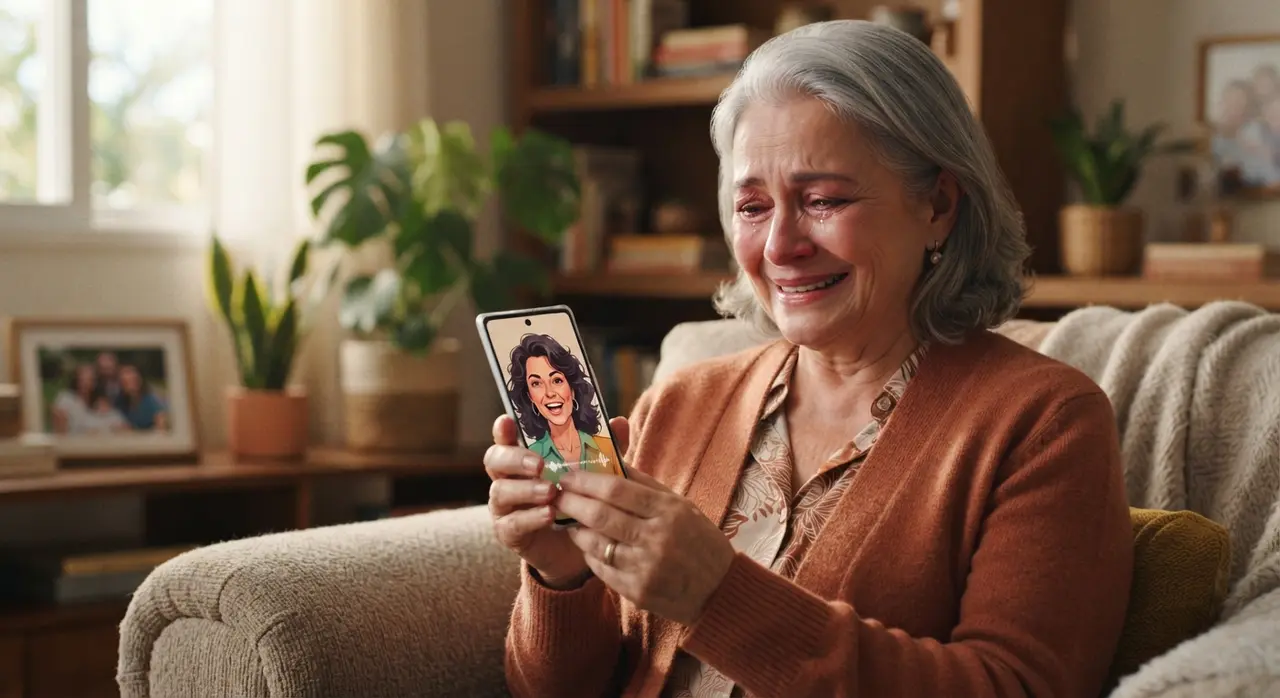
Personalized talking photo videos turn traditional portraits into heartfelt messages for birthdays, anniversaries, holiday greetings, and memorial honors. Hearing a beloved relative's voice say a meaningful sentence brings nostalgia to life in a way static photography cannot match.
For instance, a daughter named Sarah wanted to surprise her mother on her 60th birthday using an old, black-and-white picture of her late grandfather. Sarah restored the photo and submitted a short 25-word message to Vídeo com IA via WhatsApp, wishing her mother a happy birthday in a warm, gentle voice. The finished clip was delivered in under five minutes, creating a deeply moving moment that became the highlight of the family celebration.
Creating a Talking Photo Video on WhatsApp Requires Four Simple Steps
Generating a customized speaking photo video is done directly inside WhatsApp without downloading third-party applications. The process is streamlined so that anyone, regardless of technical background, can obtain professional results quickly.
- Select a clear portrait photo: Choose a photograph where the person's face is clearly visible and well-lit.
- Open the WhatsApp chat: Message the Nostalgia AI engine directly on WhatsApp at +1 (555) 990-4415.
- Upload the picture and send your script: Attach your image and type the exact message you want the photo to speak.
- Receive your animated video: The AI processes the image and text, returning a downloadable lip-synced video file.
You can also adjust the length and flow of your generated media. Learn more about selecting clip durations in our guide to choosing AI video duration for family memories.
Preserve and Share Nostalgic Speech Effortlessly
Choosing what a person says in an AI video is a simple, creative process that gives new life to static portrait images. By sending a clear photograph and a short, well-punctuated script via WhatsApp, you can generate customized speaking videos ideal for holiday gifts, memorial tributes, and social media reels. Send your photo and customized text directly to Nostalgia AI on WhatsApp at +1 (555) 990-4415 to transform your family photographs into unforgettable video memories.
Frequently asked questions
How do I specify what the person says in the talking photo video?
You specify the spoken text by typing your custom message directly into the WhatsApp chat along with your uploaded photo. The AI automatically converts your written words into synthesized speech and synchronizes the person's mouth movements accordingly.
What language will the AI voice speak in?
The AI voice reads the text in the language you type. By default, typing your script in clear English or Portuguese produces natural pronunciation corresponding to that language's phonetic rules.
Can I use old or restored black-and-white family photos?
Yes, you can use old, black-and-white, or restored family photographs as long as the face is clearly visible. For the best visual result, ensure the portrait has adequate lighting and minimal blur around the mouth area.
Do I need to install any software or application to make photos talk?
No installation is required because the entire creation process takes place inside WhatsApp. You simply send your photo and text script to the designated AI number and receive your rendered MP4 video in the same chat.