
Bring Your Memories to Life: How to Create a Talking Photo with AI
Learn how to make a photo speak with AI, turning static memories into moving, emotional videos. Create your own talking photo easily via WhatsApp.
- talking photo
- AI video
- digital memories
- AI photo animation
- nostalgia
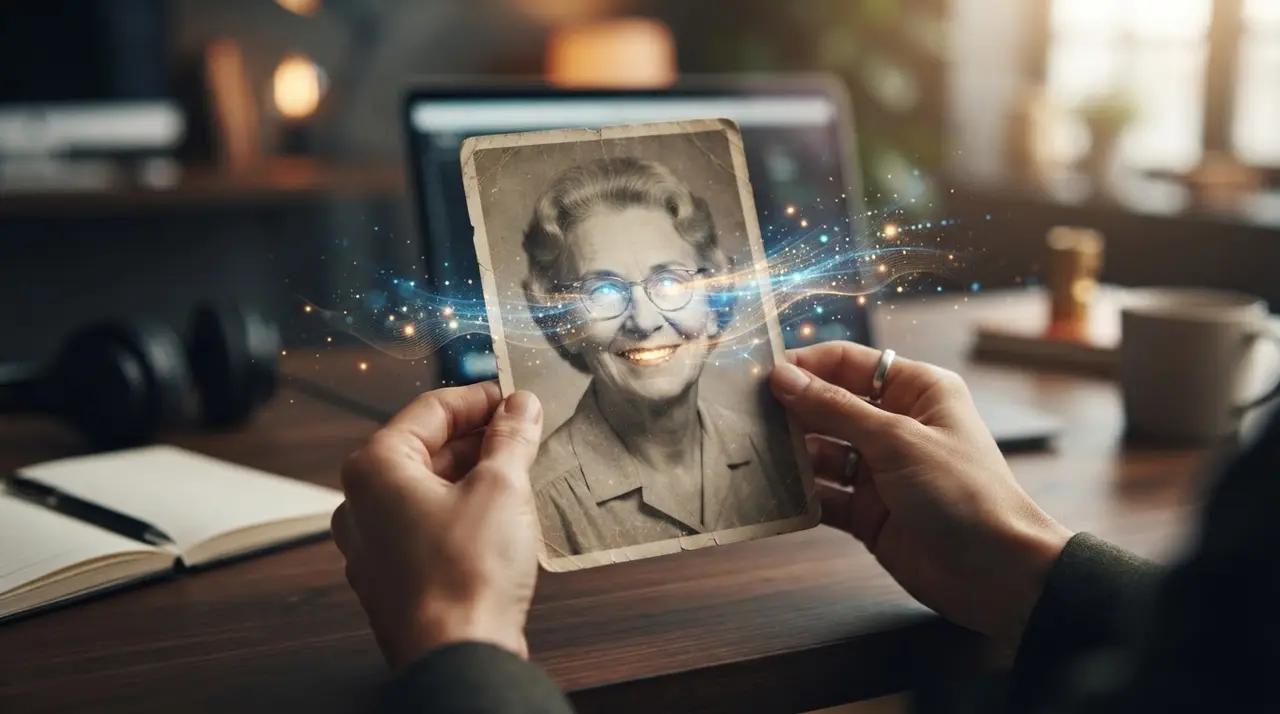
The Power of a Talking Photo
A talking photo is a digital creation that uses artificial intelligence to synchronize a static portrait with a recorded or generated audio track, making it appear as if the person in the image is speaking. By using AI to make a photo speak, you transform a silent, distant memory into an immersive, emotional experience that feels present and real.
Seeing a loved one who has passed away or a grandparent from a vintage photograph "come to life" creates a unique bridge between the past and the present. Unlike traditional slideshows or static albums, a photo with audio captures a personality, a voice, and a moment that feels truly alive, making it the perfect gift for anniversaries, birthdays, or family memorials.
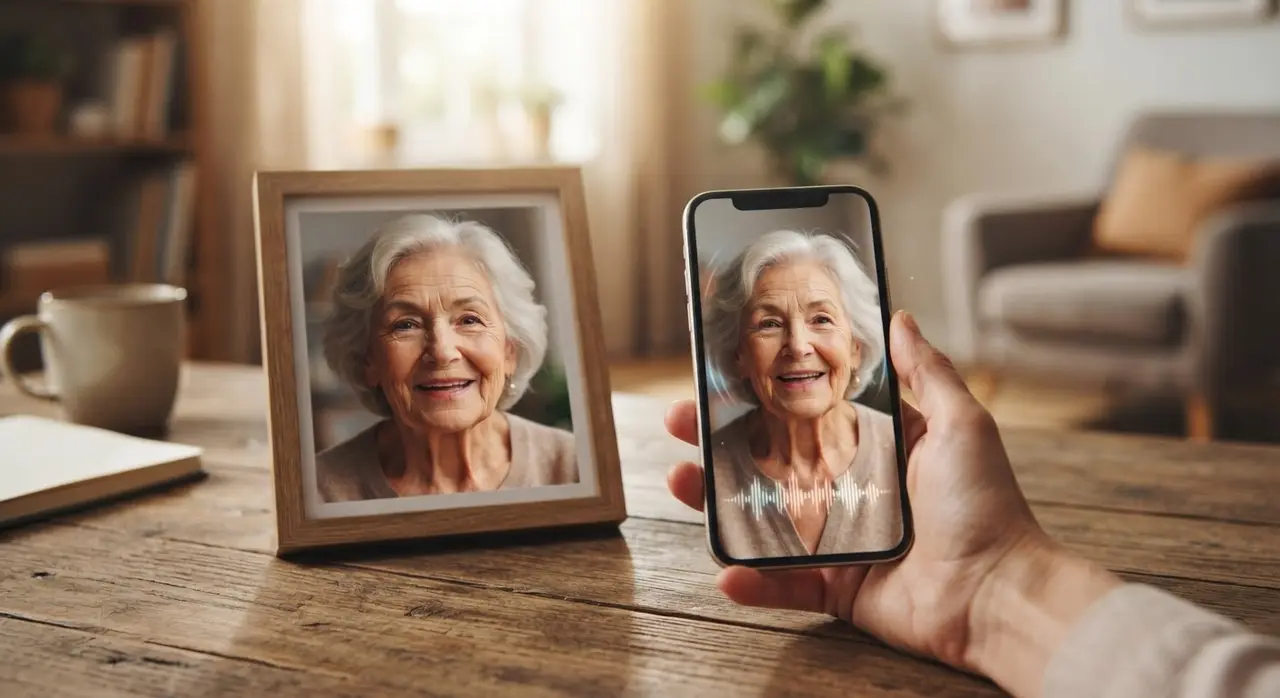
Why Animated Memories Resonate Deeper
Animated memories provide a significantly stronger emotional impact than static images because they engage both the visual and auditory senses simultaneously. When you use AI for talking photos, you are not just preserving a face; you are preserving the essence of a person, their cadence, and their warmth.
Consider how much more effective a video with audio is compared to a text message or a silent photograph. Whether it is a heartfelt message from a parent to a child on their wedding day, or a birthday greeting from an ancestor, these videos turn restored family photos into emotional heirlooms that families cherish for generations.
How to Make a Photo Speak via WhatsApp
Making a photo speak is a seamless process designed for simplicity, requiring no complex software or technical skills. You simply interact with our AI through WhatsApp, sending your image and the desired message to receive a high-quality video back.
| Step | Action | Outcome |
|---|---|---|
| 1. Submission | Send your photo to our WhatsApp AI | AI analyzes facial geometry |
| 2. Scripting | Provide the text you want the photo to say | AI generates natural lip-syncing |
| 3. Selection | Choose duration and output quality | Video rendering begins |
| 4. Receipt | Receive your final video file | Ready to share or save |
To get the best results, use a clear, front-facing portrait where the eyes and mouth are visible. Keep your script short, clear, and emotional to ensure the AI can match the facial expressions perfectly to the tone of your message.
Real-World Impact: A Case of Reconnection
When Maria, a client at Vídeo com IA, wanted to surprise her father for his 70th birthday, she felt a standard photo album wasn't enough. She took a faded, high-quality portrait of her late grandfather and used our AI to make the photo speak, having it recite a short, loving poem he used to tell her as a child.

The result was deeply moving. Seeing her grandfather’s face move and hearing his voice—recreated through the AI—brought the entire family to tears at the celebration. This application of AI to bridge the gap between memory and presence is exactly why we do what we do.
Frequently asked questions
What do I need to create a talking photo?
You only need a clear, high-quality photograph of a face and the text you want the subject to speak. Our Vídeo com IA service handles the technical AI processing directly through WhatsApp.
Can I use photos of people who have passed away?
Yes, this is one of the most common and moving uses of our technology. As long as the original photo shows the face clearly, the AI can animate it to create a beautiful, nostalgic tribute.
How long should the audio script be for the best result?
We recommend keeping your script concise, ideally between 15 to 30 seconds. Short and clear messages result in more natural facial movements and better lip-syncing for your video with audio.
Is it difficult to use the WhatsApp service?
It is designed to be extremely simple for anyone to use. You simply send the photo as a regular attachment and type your message, and our automated system guides you through the rest of the steps.